字體:小 中 大
 |
|
|
|
| 2012/11/23 11:35:17瀏覽273|回應0|推薦0 | |
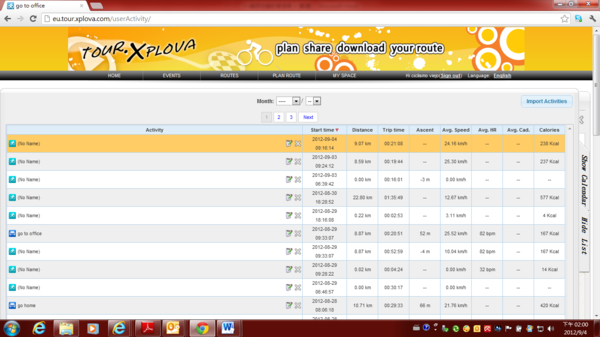
Edit Activities Function ------------------------------------------------------------------------------------------------------ 1)After you upload the activities, you can begin to do diverse applications.
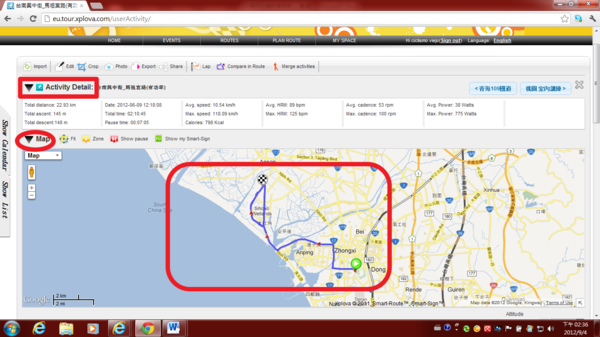
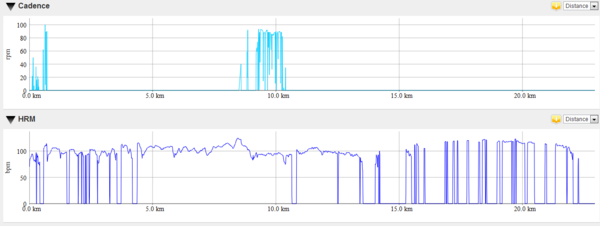
2) You will have the opportunity to see the following information, contains Activities Detail, activity shown on the map, Altitude chart, HRM chart, Speed chart, Cadence chart, Power chart and Temperature chart (but HRM chart, Cadence chart, Power chart, depends on users installed related sensor or not). 2.1) Activities Detail, activity shown on the map
2.2) To view Altitude chart, Speed chart
2.3) To view Cadence chart, HRM chart
2.4) To view Power chart and Temperature chart
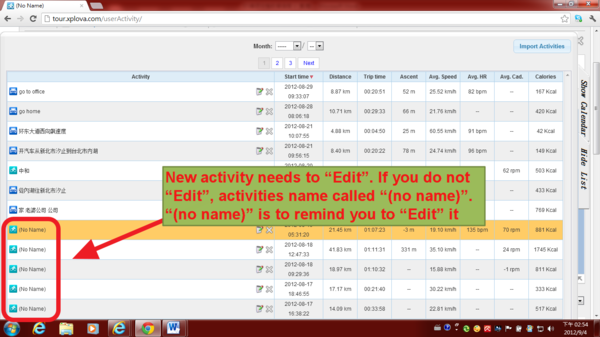
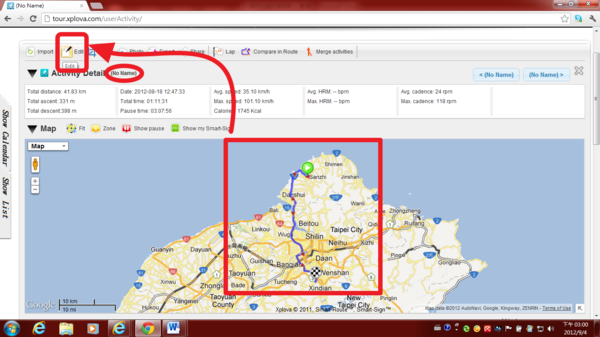
3) New activity needs to “Edit”. If you do not “Edit”, activities name called “(no name)”. “(no name)” is to remind you to “Edit” it.
4) click an (no name) activities in order to "Edit"
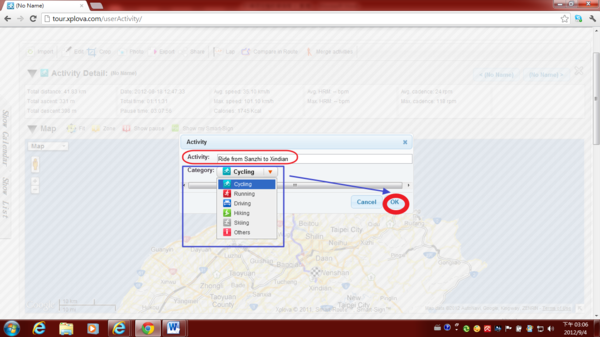
5)Click “Edit” to give activity name & choose correct Category.
6) For example: Activity name is “Riding from Sanzhi to Xindian”, Category is “Cycling”. After fill in information, click " OK " .
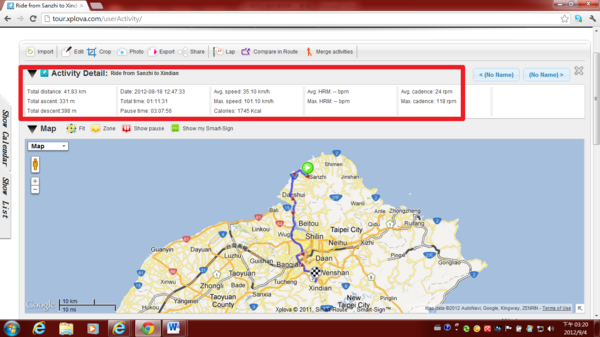
7) The following image appears, activity name and correct sports category. No longer called (no name).
8) Following the instructions, you can view your activities record
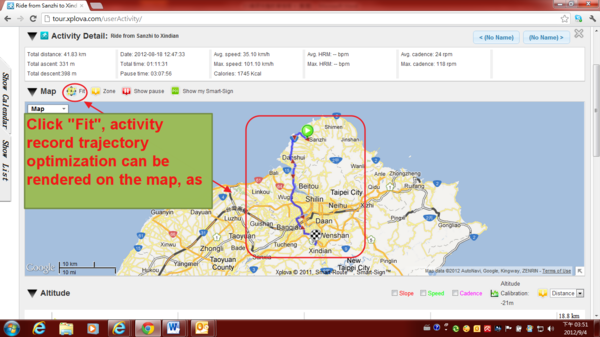
8.2.1) In the map view, you can click on the "Fit" to make the activity record trajectory optimization is presented on the map.
8.2.2) Click "Fit", activity record trajectory optimization can be rendered on the map, as shown below
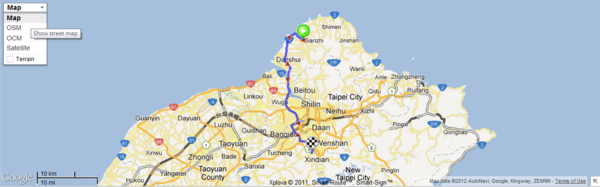
8.2.3) To view activity on Google street map
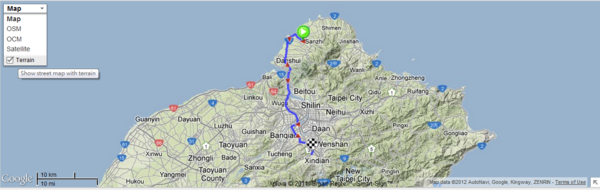
8.2.4) To view activity on Google street map plus terrain.
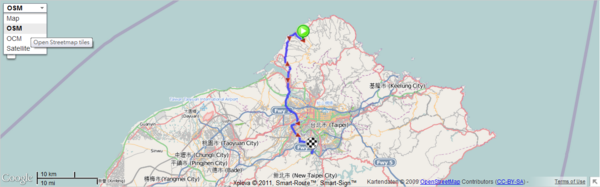
8.2.5) To view activity on OSM (open street map)
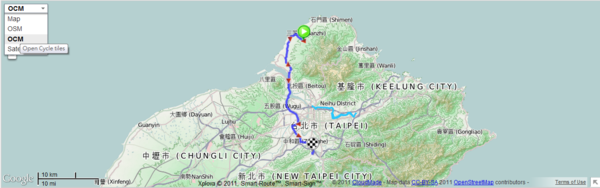
8.2.6) To view activity on OCM (open cycle map)
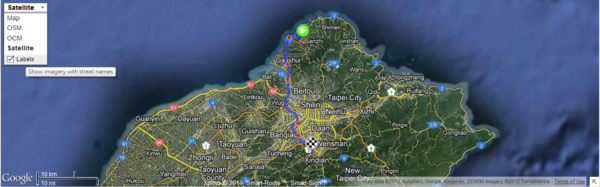
8.2.7) To view activity on satellite imagery
8.2.8) To view activity on satellite imagery plus street name
Depends on user’s choice to use favorite map for viewing the activity.
|
|
| ( 興趣嗜好|運動 ) |