字體:小 中 大
 |
|
|
|
| 2012/11/23 11:08:50瀏覽248|回應0|推薦0 | |
This article follow [Xplova E5 Lecture] Upload Activities (vol 1) 4.2.1) There are three main mode to upload activities. 
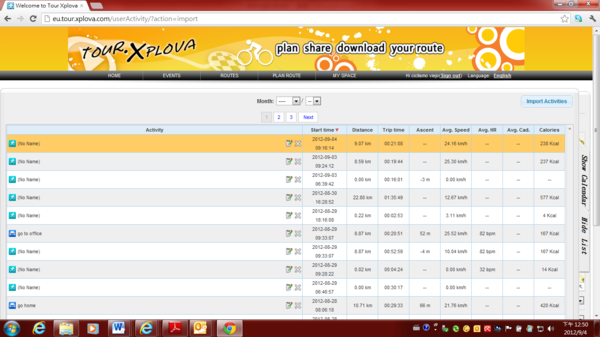
4.2.2) go to activities list.
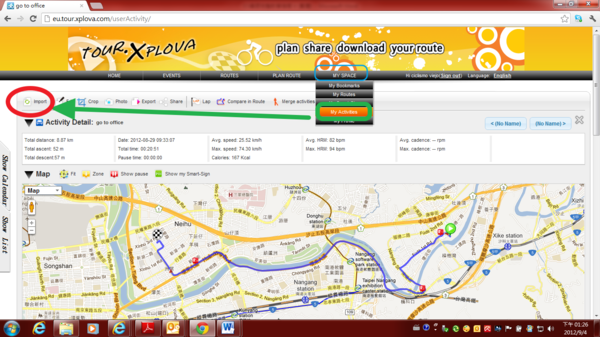
4.2.3) Click " Import Activities”
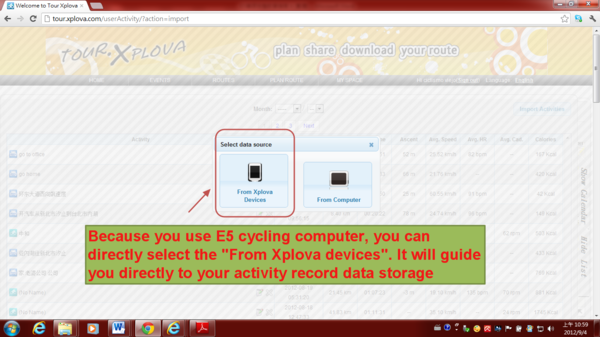
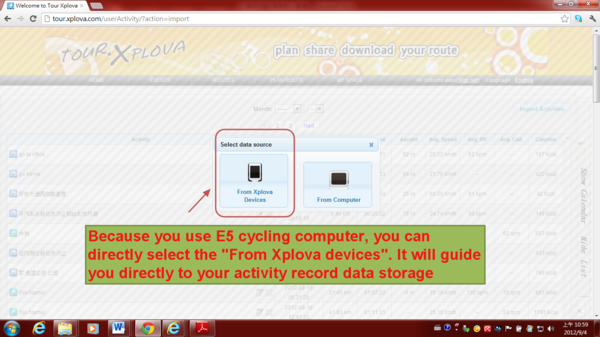
4.2.4) Select data source: Because you use E5 cycling computer, you can directly select the "From Xplova devices". It will guide you directly to your activity record data storage location. If you are using another brand cycling computer, you shall select the “ From Computer”. Then, on your computer, looking for your activity storage location and import.
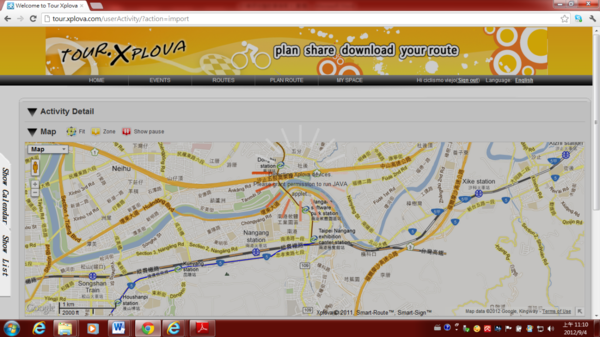
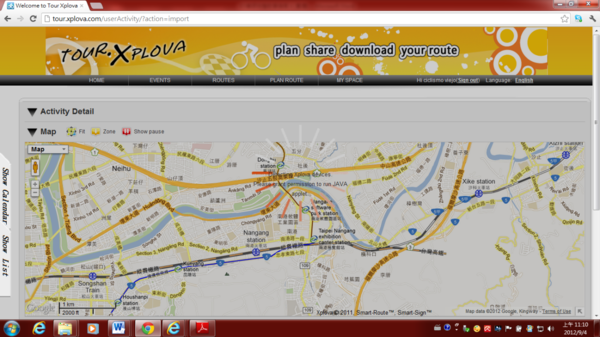
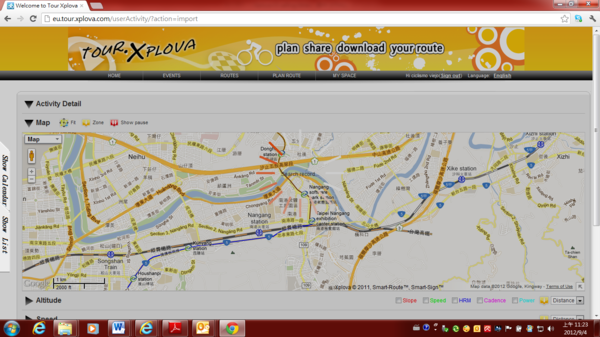
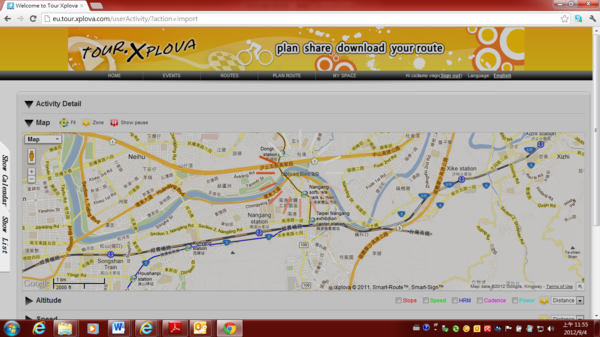
4.2.5)Detecting Xplova devices…
4.2.5.1) & Search record…
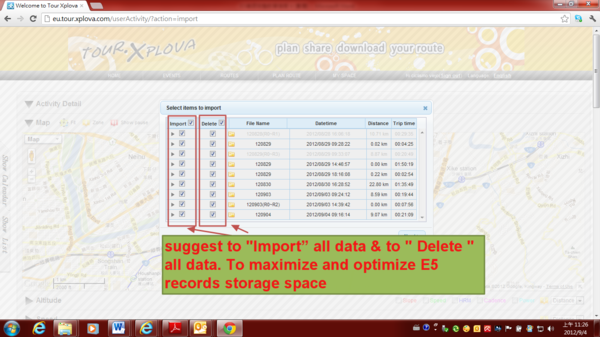
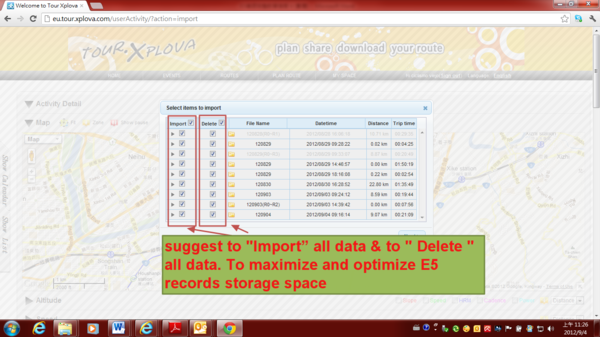
4.2.6) Select items to import: I suggest to "Import” all data & to " Delete " all data. To maximize and optimize E5 records storage space.
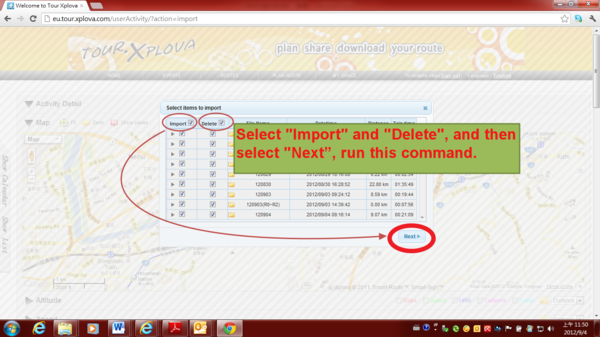
4.2.7) Select "Import" and "Delete", and then select "Next”, run this command.
4.2.8) Upload files: Import activity record to your ID account of tour.xplova.com.
4.2.9) Delete Files: To maximize and optimize E5 records storage space
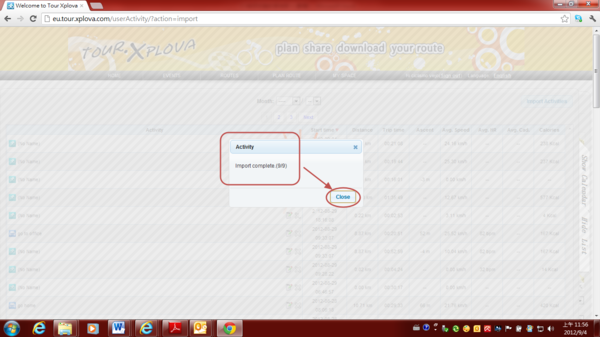
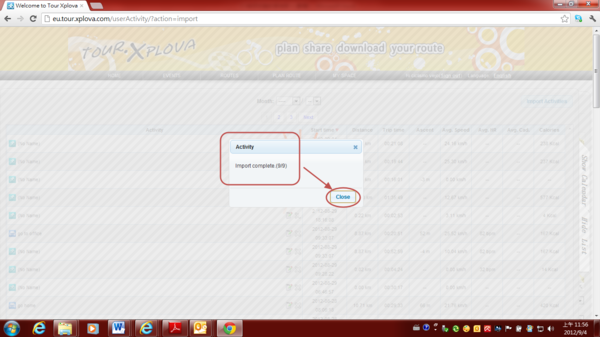
4.2.10) “Import” and “Deleted” successfully, then click "Close" to close the completed message window prompts.
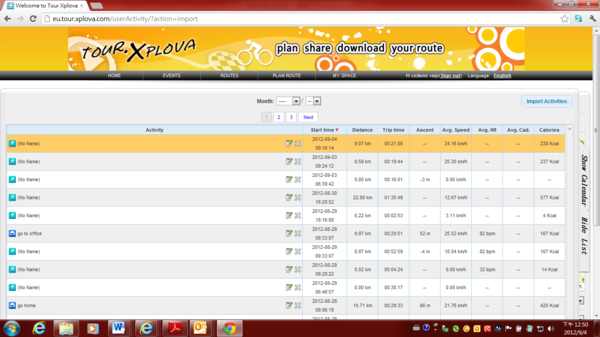
4.2.11) To view “Activities list” or “Activities Calendar”. 4.2.11.1) Activities list
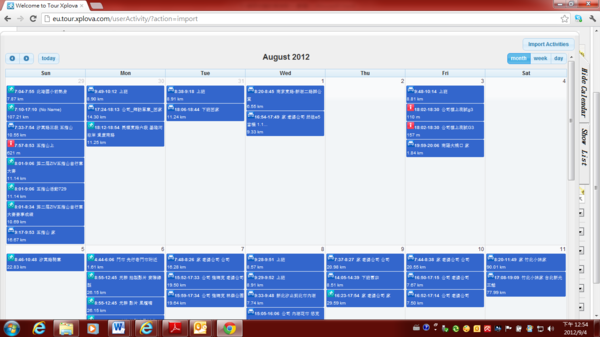
4.2.11.2) Activities Calendar
4.2.12) After you upload activities to the cloud webserver tour.xplova.com, please remove the USB data cable from the computer. 4.3.1) There are three main mode to upload activities. The third way is to click “Import” of “My Activities” of “MY SPACE”
4.3.2) Select data source: Because you use E5 cycling computer, you can directly select the "From Xplova devices". It will guide you directly to your activity record data storage location. If you are using another brand cycling computer, you shall select the “ From Computer”. Then, on your computer, looking for your activity storage location and import.
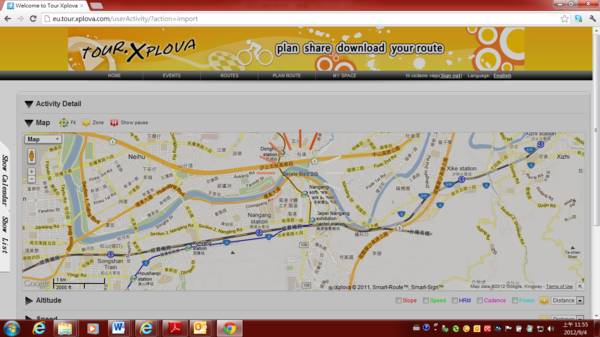
4.3.3)Detecting Xplova devices…
4.3.3.1) & Search record…
4.3.4) Select items to import: I suggest to "Import” all data & to " Delete " all data. To maximize and optimize E5 records storage space.
4.3.5) Select "Import" and "Delete", and then select "Next”, run this command.
4.3.6) Upload files: Import activity record to your ID account of tour.xplova.com.
4.3.7) Delete Files: To maximize and optimize E5 records storage space
4.3.8) “Import” and “Deleted” successfully, then click "Close" to close the completed message window prompts.
4.3.9) To view “Activities list” or “Activities Calendar”. 4.3.9.1) Activities list
4.3.9.2) Activities Calendar
4.3.10) After you upload activities to the cloud webserver tour.xplova.com, please remove the USB data cable from the computer. Depends on your choice in which you would like to upload the activities record.
|
|
| ( 興趣嗜好|運動 ) |