字體:小 中 大
 |
|
|
|
| 2020/12/27 19:50:18瀏覽283|回應0|推薦0 | |
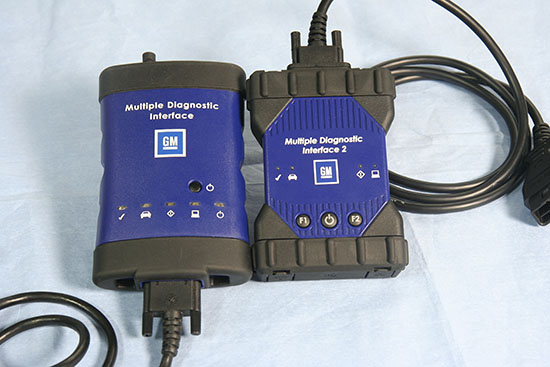
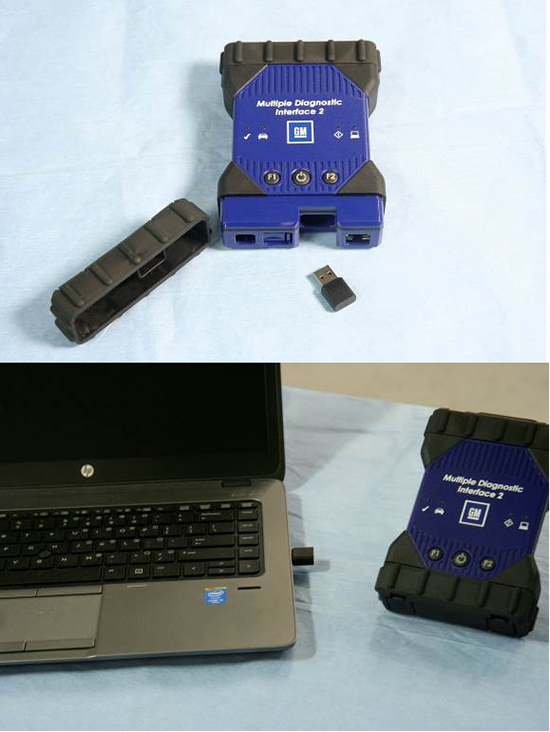
The next generation of the J2534 GM Multiple Diagnostic Interface, or GM MDI 2(Fig. 1, right), offers increased processing power and security than the original MDI (Fig. 1, left) for faster programming speeds on current Global A vehicles as well as future Global B vehicles. The compact communication module is required in order to manage the transfer of data between a vehicle’s onboard network and a service technician’s PC.
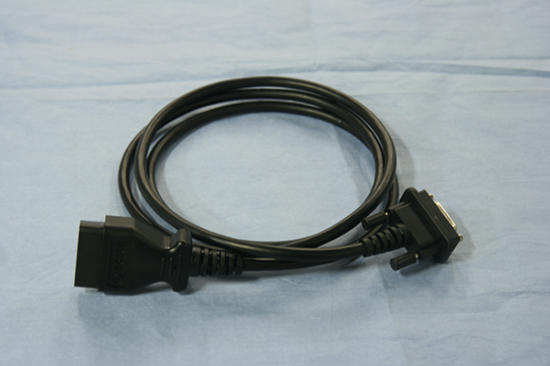
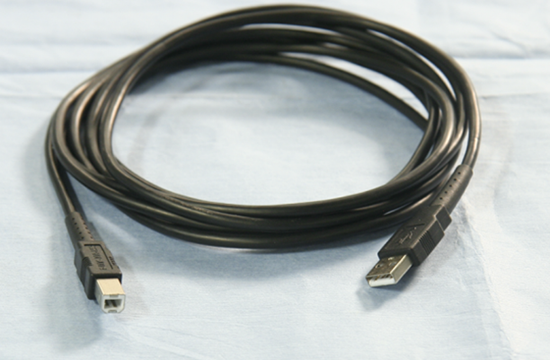
The MDI 2 supports diagnostic applications — GDS 2, Data Bus Diagnostic Tool, and Tech2Win — as well as Pass-Thru programming applications — TIS2Web–SPS. Enhancements to the tool were based on technicians’ feedback on how they use the MDI and how to improve it. It replaces the first generation MDI, introduced in 2007, for Pass-Thru programming on current GM models. The MDI 2 is backward compatible, so it can be used to perform Pass-Thru programming on all vehicles built since 1996. The MDI 2 connects to the vehicle via the J1962 connector using a new DLC cable. Connection between the GM Diagnostic Tool MDI 2 and the PC running the Global Diagnostic System 2 (GDS 2) software can be accomplished via standalone (USB), through a new Point-to-Point wireless Wi-Fi interface feature (a simple plug & play), or through the dealership network (Ethernet or wireless). MDI 2 Kit The EL-52100 MDI 2 kit includes: * MDI 2 Unit
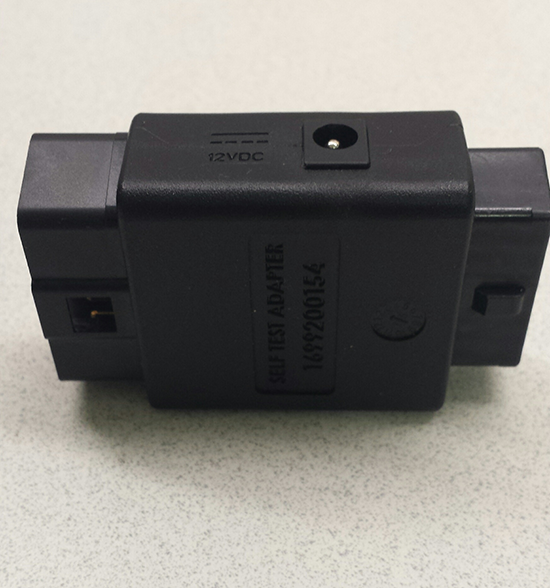
A DLC Cable Self-Test Loopback Adapter (Fig. 5) was sent to dealerships as an essential tool in December. It’s compatible with the MDI and MDI 2. It’s also sold separately through GM Dealer Equipment. The adapter is used to test the DLC cable for open wires when used with the MDI Manager software. The adapter also can be used to power the MDI or MDI 2 on the workbench.
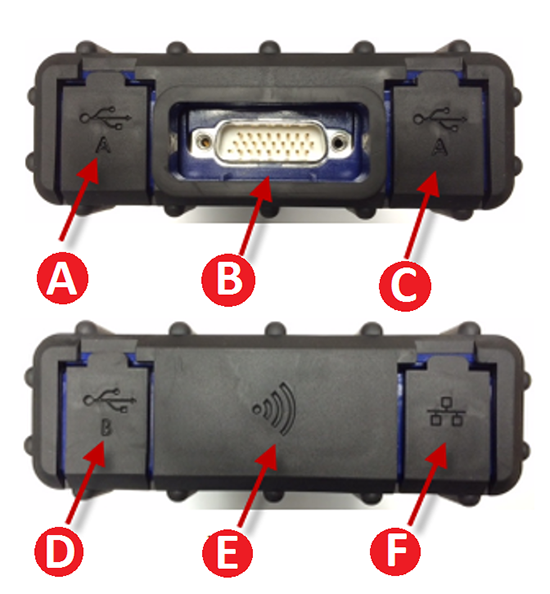
MDI 2 connections
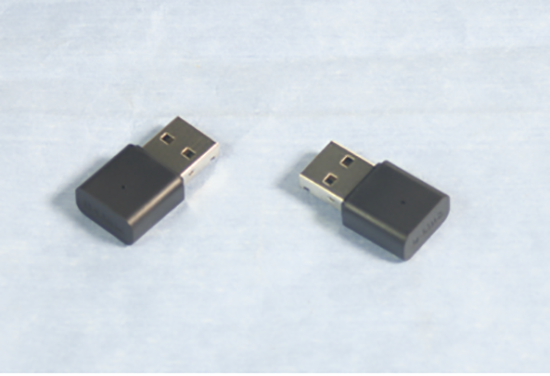
New Features MDI Manager Software The MDI Manager must be installed on the PC in order to configure, update and run diagnostic applications targeted for the PC. Initially, use the MDI Manager software to set up the configuration of the MDI 2. The MDI Manager is also used to update the firmware on the MDI 2. Visit the TIS2Web/GlobalTIS website to determine if a newer version of MDI Manager software is available. Wireless Dongle Setup The first time the MDI 2 is used, the point-to-point USB dongle must be paired with the PC, which will install the necessary drivers on the computer. One dongle should be plugged into the PC and one into the MDI 2. The dongles are identical. Use either one for either connection. Remove the bottom dust cover to access the port. TIP: Do not plug the dongle into a USB hub. It must be plugged directly into the computer. Connect the MDI 2 to the PC via the USB cable. After starting the MDI Manager, the Point-to-Point connection is automatically configured. The USB dongles are intended to stay plugged into the PC or laptop at all time. If it must be removed, safety eject it by right-clicking on the Windows USB icon in the bottom right toolbar on the computer. Dealerships considering new purchases should look into the MDI 2 for its many new advantages The original MDI will continue to be supported, but will not work on future Global B models. |
|
| ( 興趣嗜好|偶像追星 ) |