字體:小 中 大
 |
|
|
|
| 2020/09/26 10:41:59瀏覽151|回應0|推薦0 | |
Good to know: sd connect C4 Plus firmware update doesn’t need battery any more. This is the difference between it and the ordinary sd c4. When to upgrade sdconnect C4 Plus firmware? For example, one user feedback ” he has SD connect C4 Plus with Xentry 2020.3 software and try it to connect to the car and the computer with no luck, it fails to communicate”.
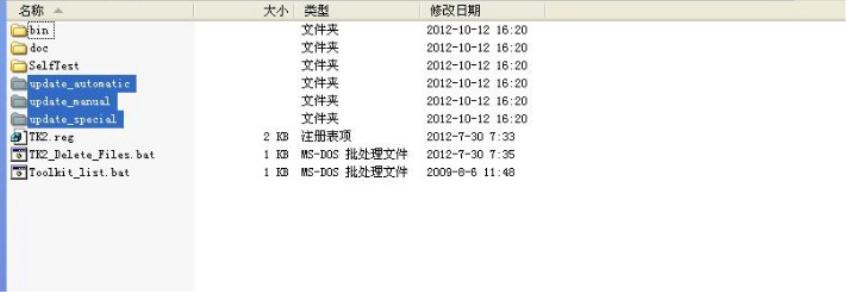
The solution from Obd2tool.com chief engineer: To upgrade SD connect C4 Plus firmware. How to upgrade SD C4 Plus firmware without battery installation? Open DAS software, enter the folder “C:\programm files\SDconnect ; Update_Special.. As shown in the figure below. If the name is wrong, please correct it.
Reboot the computer. When accessing a vehicle in Xentry Diagnostics or Xentry DAS, the following message appears:
Please exit the diagnostic application Xentry Diagnostics or Xentry DAS correctly and follow the next steps. 2) Connecting the SDconnect to the Star Diagnosis system Connect the SDconnect to the Star Diagnosis system with the green LAN cable. The SDconnect will be automatically selected and appear in the deskband on the Star Diagnosis system:
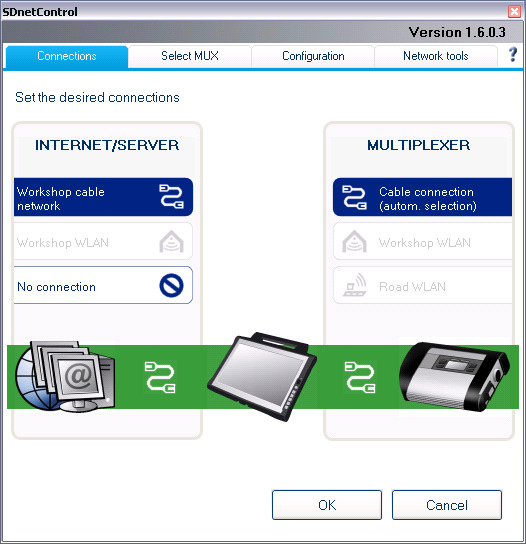
3)SDnetControl A) Start SDnetControl by clicking the deskband B) Check whether automatic selection via the cable connection is active:
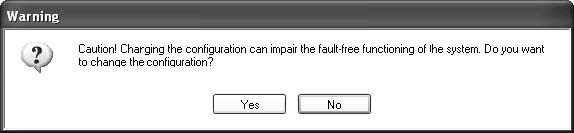
Go to the “Configuration” tab, and confirm the warning with “Yes”:
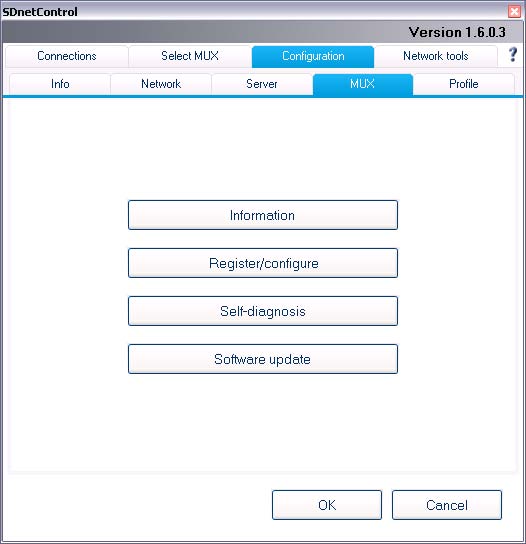
4). Software update Go to the “MUX” tab in SDnetControl. Click on the “Software update” button.
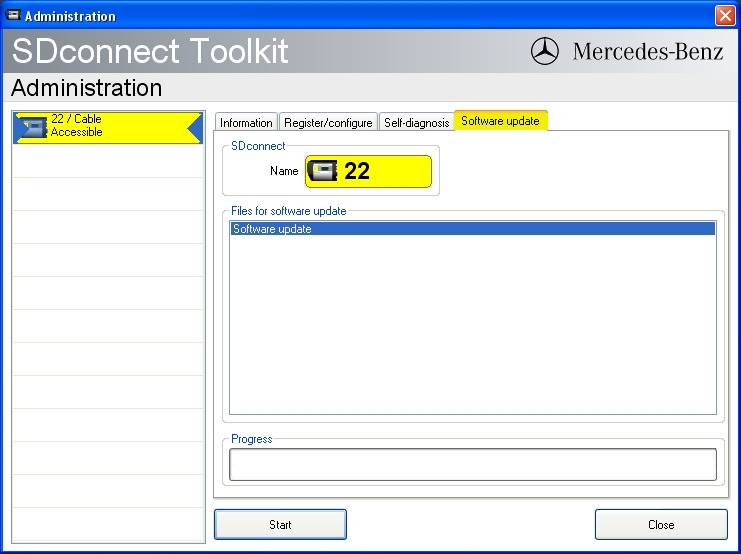
The “SDconnect Toolkit Administration” program will start. Go to the “Software update” tab in the SDconnect Toolkit. Your SDconnect is already selected on the left-hand side. Select the “Software update” packet under “Files for software update”. Click “Start” to start the process.
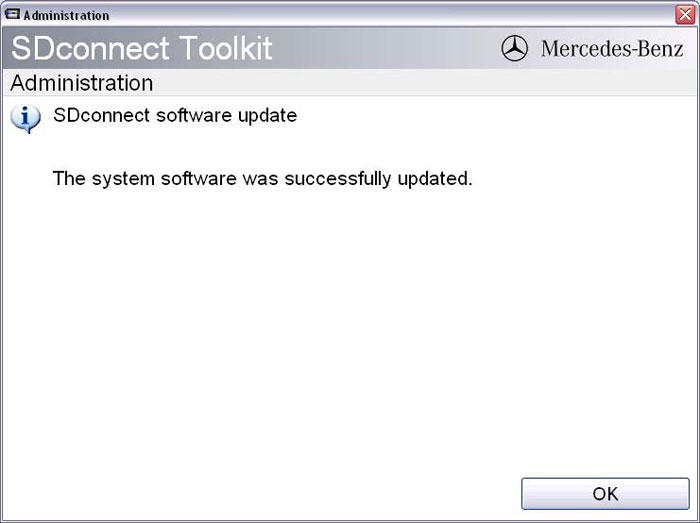
The update process will start. This takes approx. 4 minutes. 5) Complete the installation Confirm the successful completion of the update. After a successful update, a message indicating the successful update completion appears. Confirm the message by clicking “OK”.
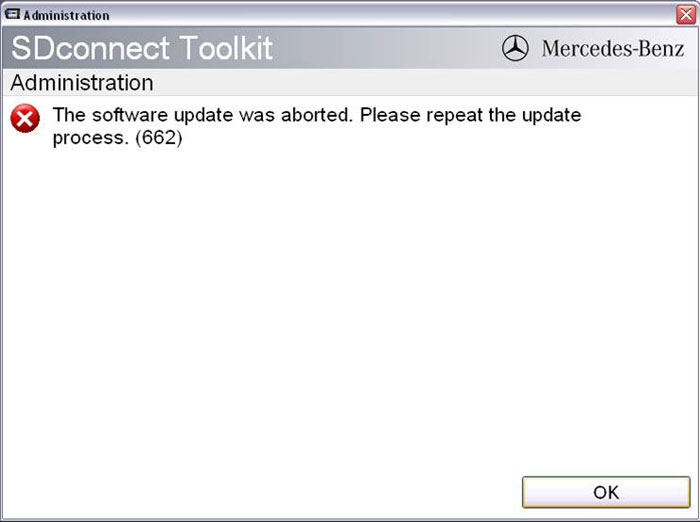
Update not successful Confirm this message by clicking “OK”. Check the SDconnect batteries if necessary and repeat the update process.
6) Check the installed software Go to the “Information” tab in SDconnect Toolkit Select your SDconnect on the left-hand side. Check the information under “Software versions” at the right:
The SD Connect 4 plus firmware update is completed. The green LAN cable can be removed. |
|
| ( 興趣嗜好|偶像追星 ) |