字體:小 中 大
 |
|
|
|
| 2020/07/24 16:42:05瀏覽17|回應0|推薦0 | |
This post comes with the guide of how to use XTOOL X100 Pad3 to read Toyota 93C46 EEPROM data and find out the related file saved.
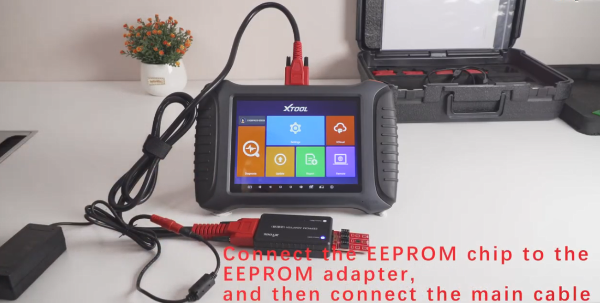
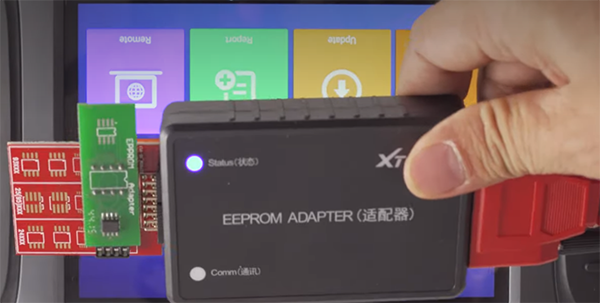
How to read EEPROM data by XTOOL X100 PAD3? Connect EEPROM adapter and X100 PAD Elite main unit by main cable Then connect the power supply adapter before operating
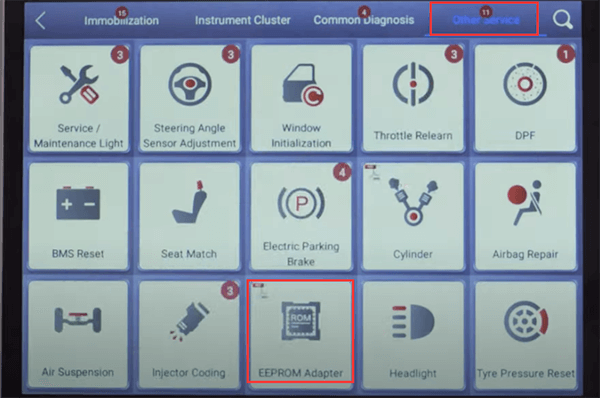
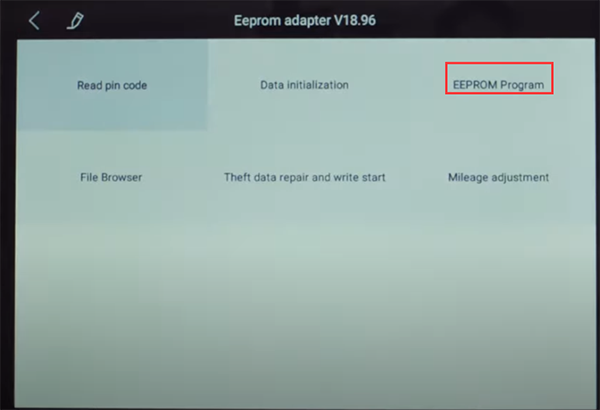
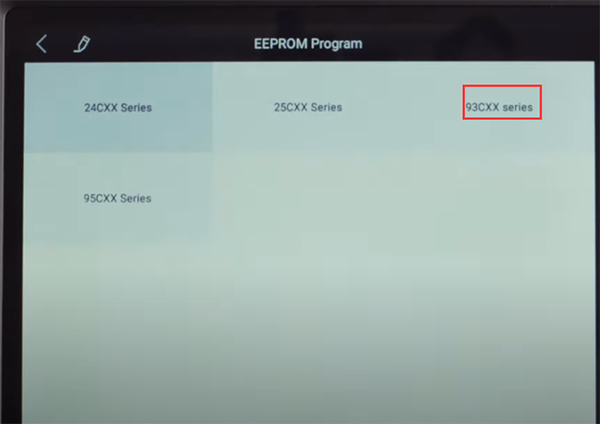
Note: when the connection is normal, the status indictor light will be on Enter X100 pad3 main menu Select Diagnosis-> Other service-> EEPROM Adapter-> EEPROM Program
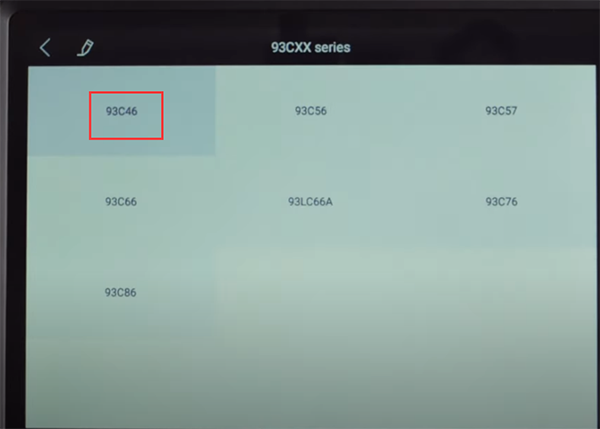
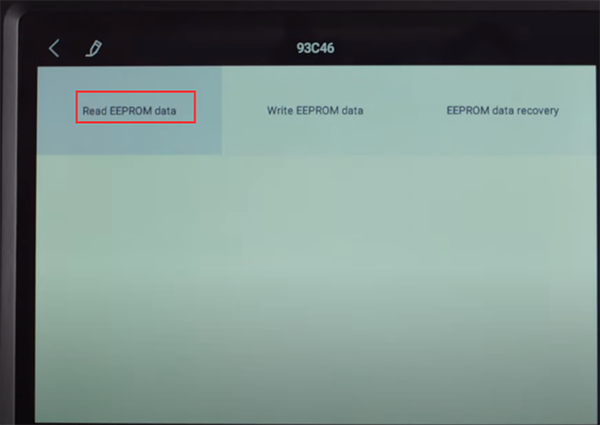
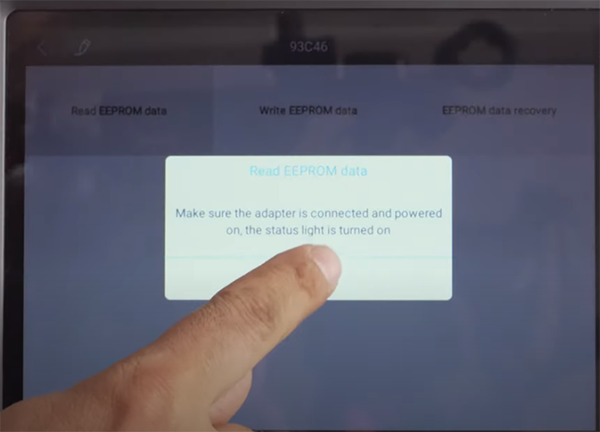
Make sure the adapter is connected and powered on, the status light is turned on Connecting with the adapter… Select 93CXX series->93C46-> Read EEPROM data
Pay attention to the prompt and click OK to continue
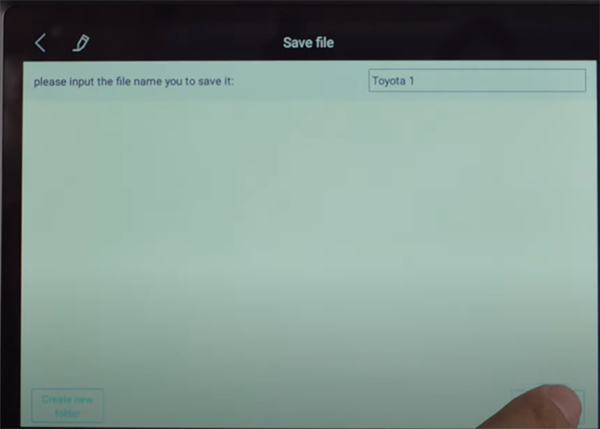
Input the file name to save the EEPROM data read out
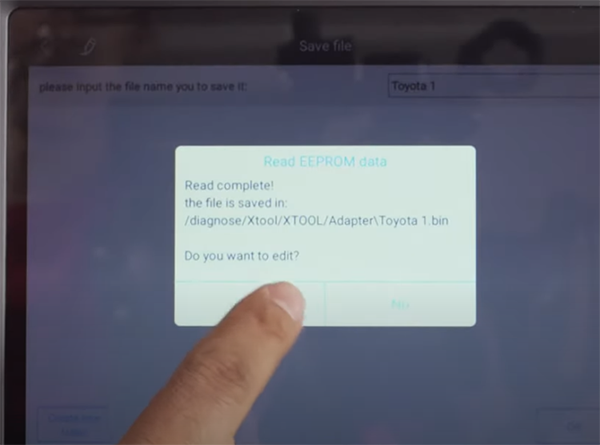
Read complete! Save the file successfully! Click “Yes” to edit
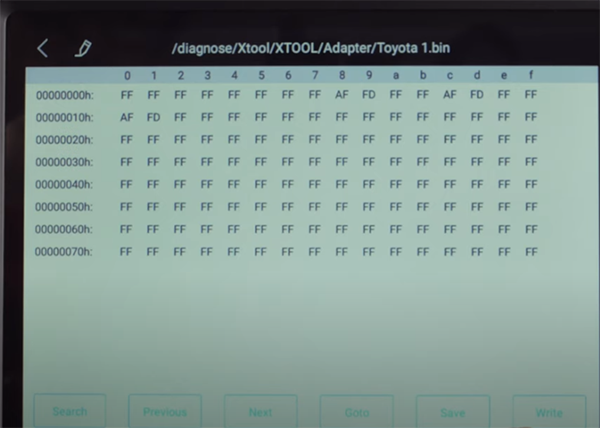
This is the data read out
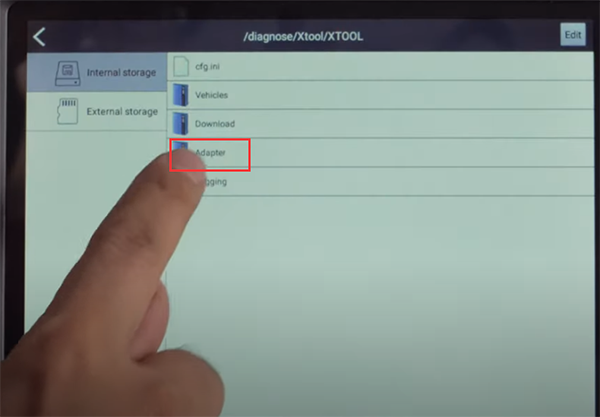
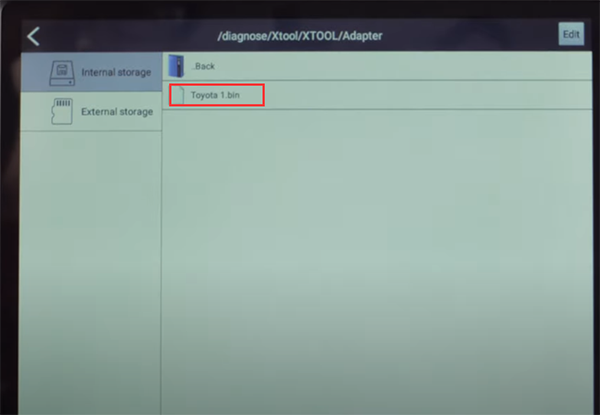
How to search for EEPROM file saved on XTOOL X100 PAD3? Back to X100 PAD3 main menu Select Report-> File Management-> Internal storage-> Adapter
Then you can find the file you saved as shown below
Related posts: XTOOL X100 PAD ELITE PROGRAM TOYOTA/LEXUS AKL & VW 4TH/5TH IMMO http://blog.cardiagtool.co.uk/xtool-x100-pad-elite-program-toyotalexus-akl-vw-4th5th-immo/ COMPARISON: XTOOL X100 PAD2 PRO VS X100 PAD3 http://blog.cardiagtool.co.uk/comparison-xtool-x100-pad2-pro-vs-x100-pad3/ |
|
| ( 不分類|不分類 ) |