字體:小 中 大
 |
|
|
|
| 2020/08/14 15:03:02瀏覽80|回應0|推薦0 | |
Recently, some customers gave feedbacks that they failed to update Xtool X100 Pro2 auto key programmer. Here have collected the common update error and offered the corresponding solution.
Problem 1: I install the x100 pro2 upgrade tool from xtooltech.com, but it cannot identify the device. The error message is “unknown (error: 9)”. I change another computer to install, but also fails.
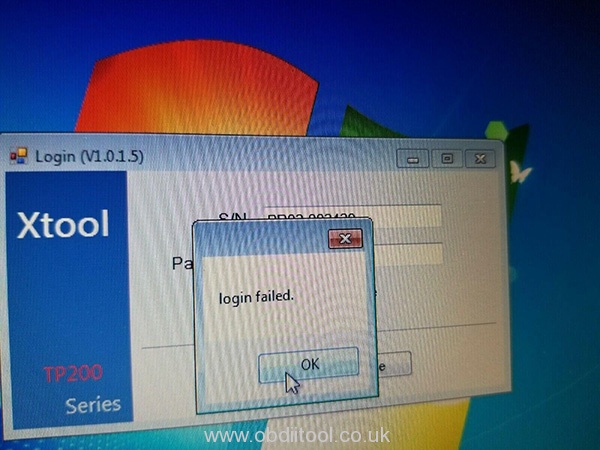
Problem 2: When I input the S/N and password from the Certificate of Quality paper, it prompts “login failed”.
Problem 3: After I update x100 pro 2upgrade tool, my device cannot use, it appears white screen with only red bar at the top of the screen. I check the main menu, everything is ok, but when connecting it to the car, it cannot do anything.
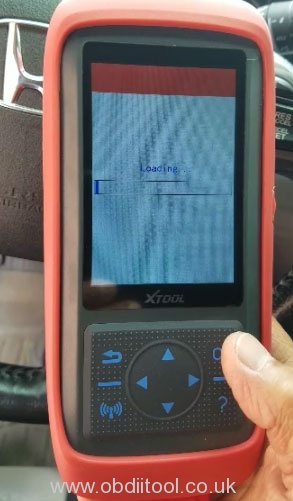
Problem 4: I had updated the software from V3.0 to V4.0. When I connected it to the car, it showed “Loading”, but then the screen turned blank and couldn’t work (IMMO, OBD2, Dash Board, Eeprom etc).
Problem 5: It prompts an error message “Result is null or empty” when update x100 pro2.
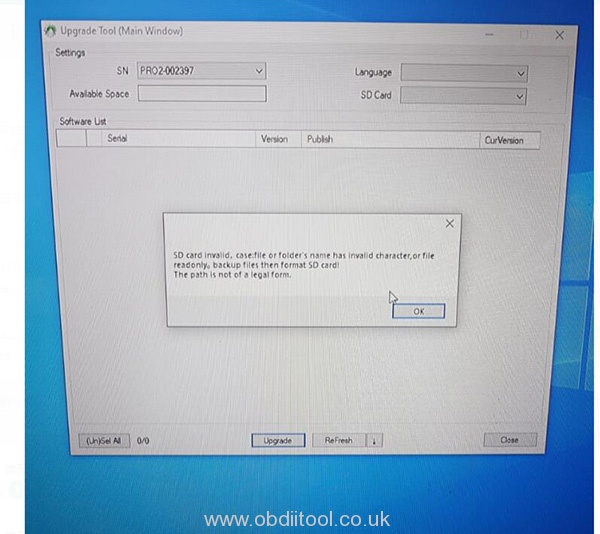
Problem 6: When I update x100 pro2, it prompts “Could not complete your request because it is not the right kind of document” and “SD card invalid. Case: file or folder’s name has invalid character, or file read only. Backup files then format SD card! The path is not of a legal form.”
The possible causes for the errors above including: 1.You use an incorrect upgrade tool 2.The serial number begins with PRO, but the letter “O” you input is number “0”
The solution: 1.If you cannot update via USB cable, change to SD connection. You should format the TF card before re-upgrading. Remove the SD card from x100 pro2 key programmer, and insert into card reader, then connect to computer. 2.Use the correct upgrade tool
The step-by-step guide to update x100 pro2 key programmer: Step 1: Visit the official website http://www.xtooltech.com
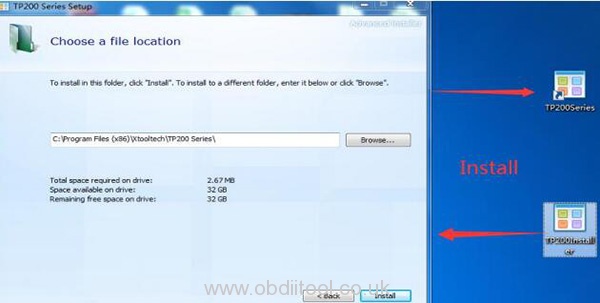
Step 2: Select Supports-> Download Upgrade tool-> X100 Pro2 It will start to download TP200Installer automatically
Step 3: Extract the installation package into an upgrade tool
Step 4: Connect X100 PRO2 to Windows computer with Type-c cable; Note: If the USB device cannot be recognized. Please solve it by the following method: 1.Insert the TYPE-C connector halfway to make the screen light up 2. Then insert all of the TYPE-C connector to identify the USB device
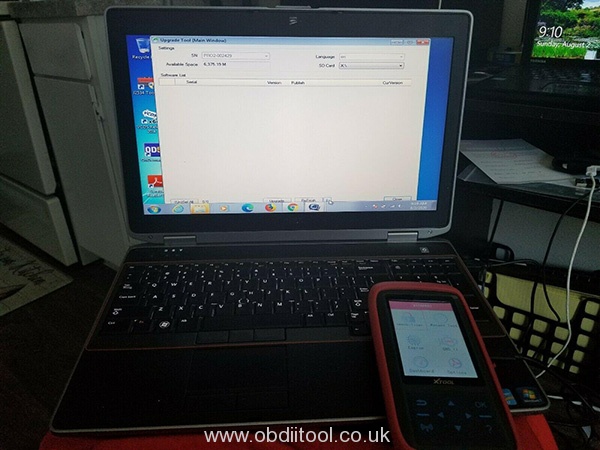
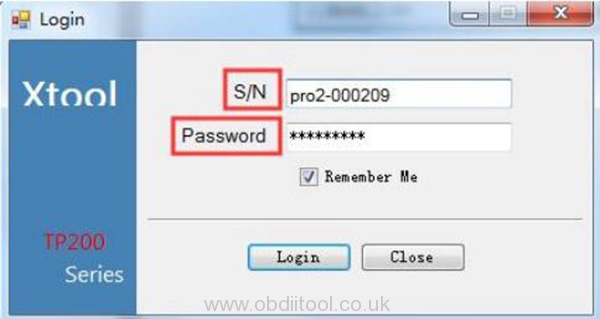
Step 5: Open the upgrade tool Input the Product SN and Password and click login (Get the Serial number and activation code from Certificate of Quality paper) Note: The serial number begins with the three letters- PRO
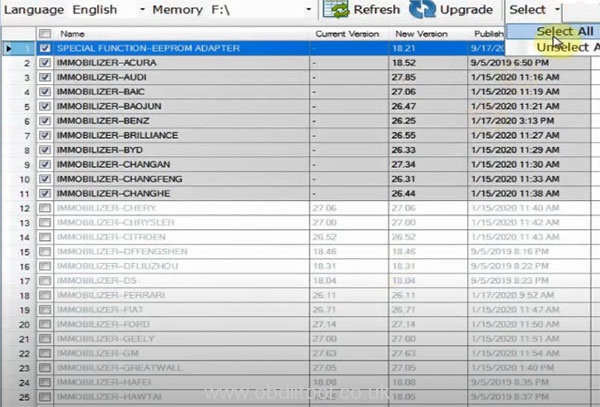
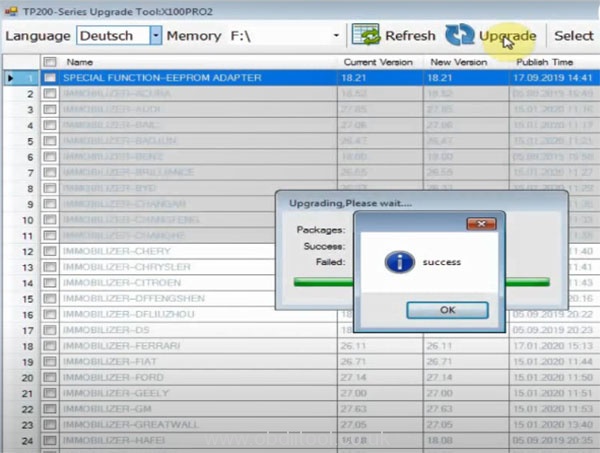
Step 6: Select all upgrade options and the language you desire Click on “Upgrade”
When the upgrade process is completed, it will prompt “success”
Xtool X100 Pro2 update video:https://youtu.be/GE8cBaaXm_g Tech support by: |
|
| ( 不分類|不分類 ) |