字體:小 中 大
 |
|
|
|
| 2020/07/30 09:29:38瀏覽662|回應0|推薦0 | |
Renault-COM Bluetooth diagnostic tool special for Renault vehicles till 2014. It comes with one main unit and one CD. When you install and run the related software, sometimes the following errors will be reported. Don’t worry! Here share the related solutions to help you.
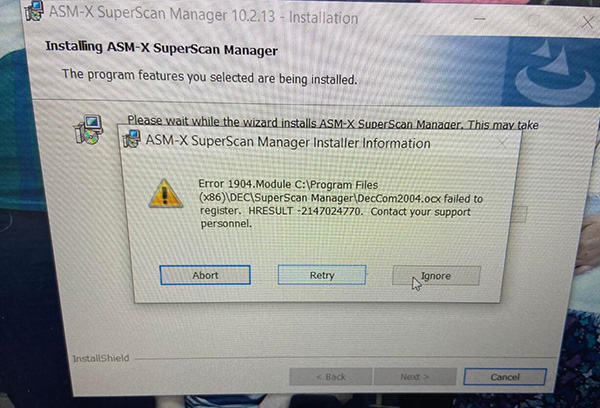
Problem 1: Cannot download the Renault-COM software from the CD, it always prompts that the CD is empty. Try to perform the same operation on two different CD- ROM drivers, but also cannot work. Problem 2: When run Renault com diagnostic software, the warning screen suddenly pops up “Error registering module decCom2004.ocx HRESULT -2147024770” or “Error 1904…” is shown as below.
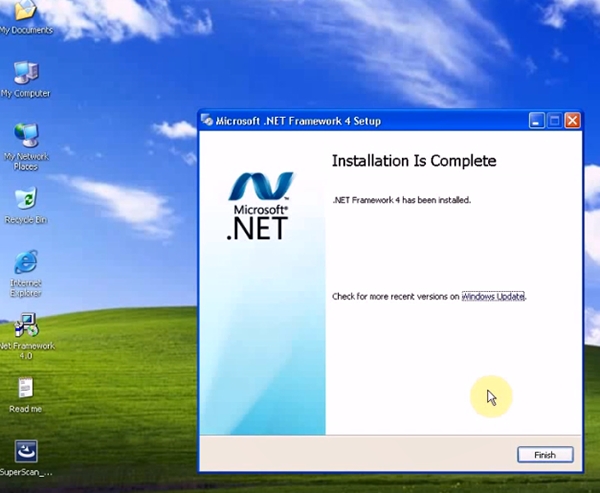
Problem 3: It shows “USB Device is not recognized/ not detected”. Problem 4: My CD is mini, so the driver is not available for installing the software Caused the error reasons: There is something wrong with the software in CD or the device driver doesn’t be installed successfully. The solution: Please download and install the Renault-com software by the following link. https://share.weiyun.com/5TTHcBt Password: btm2r5 Security: Yes, has been tested 100% working by obdiitool.co.uk engineer. O.S: Win XP and Win7 (tested successfully), Win2000/Vista/10 (at your own risk) Multi-language available: Arabic, Croatian, Czech, Danish, Dutch, English (United States), Finnish, French (Standard), German, Greek, Hebrew, Hungarian, Italian, Polish, Portuguese (Brazilian), Romanian, Russian, Serbian (Cyrillic), Spanish, Turkish Renault-COM diagnostic software installation guide: Step 1: Install Net Framework 4.0 or above Step 2: Install ASM-X SuperScan Manager Note: the activation code can be found from [Read me] Step 3: Add Bluetooth device Wizard Step 4: Run SuperScan Manager In detail… Very important!!! Do not connect to the Internet while install and use the software! Step 1: Install Net Framework 4.0 or above Disable the network before operating Copy and paste [Read me] & [SuperScan] application to desktop Open Net Framework 4.0 to install
Step 2: Install ASM-X SuperScan Manager
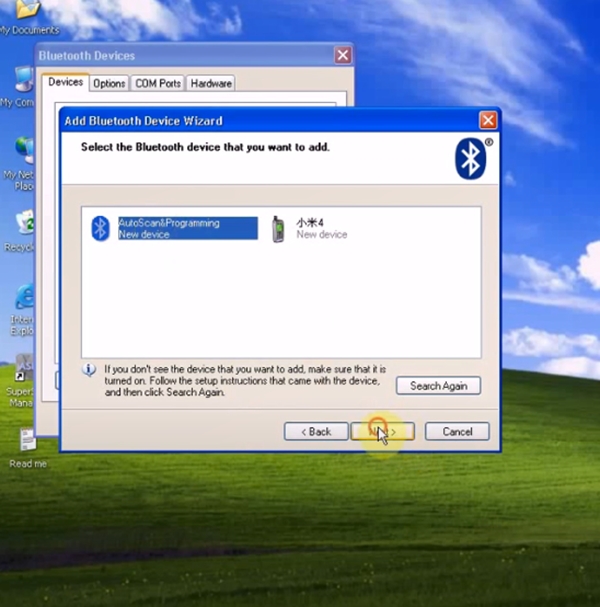
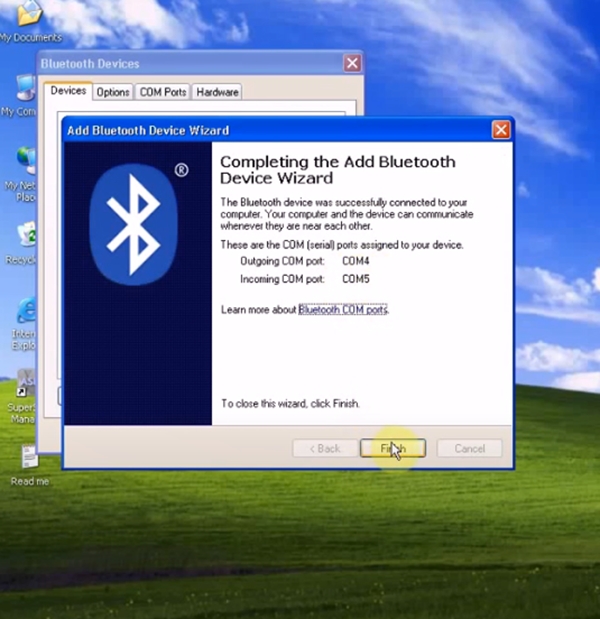
Step 3: Add Bluetooth device Wizard Click the Bluetooth icon on the right bottom of the screen to set Bluetooth
Select the Bluetooth device you want to add
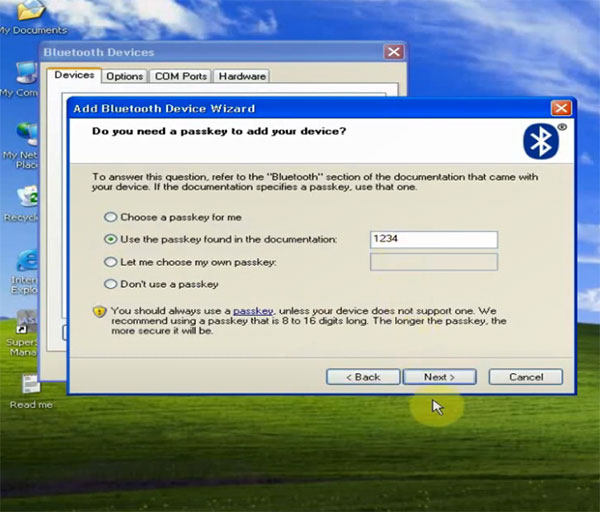
Input the passkey found in the documentation
Then next... till complete adding Bluetooth
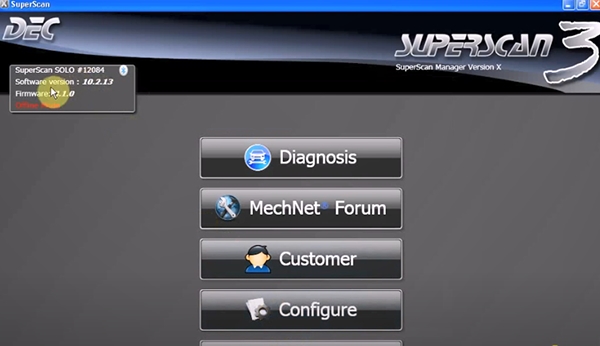
Step 4: Run SuperScan Manager Select the language you desire Set SuperScan configuration Personal information: input name, the press [Continue]
Click [Autodetect], fill in EOBD-OBDII and Renault-Dacia value from [Read me], then continue
Then you can diagnose your vehicle…
For your convenience, here is the video about how to install and use Renault-COM software. More info about Renault-COM Bluetooth diagnostic and programming tool: https://www.obdiitool.co.uk/wholesale/renault-com-diagnostic-tool.html Source: http://blog.obdiitool.co.uk/renault-com-software-installation-errors-solutions/ |
|
| ( 不分類|不分類 ) |