字體:小 中 大
 |
|
|
|
| 2022/11/26 11:12:21瀏覽3143|回應0|推薦0 | |
One of my blog readers sent the e-mail to ask how to install BMW INPA software on win7/win 8/win10.I searched and found the solution provided by forum members.
Some BMW INPA Source You Need: BMW INPA 6.4.3 Software Free Download BMW Standard Tools 2.12 Free Download https://mega.nz/#F!nshRWaLA!NbXQSw7903FIt0JdU81zCA BMW INPA Win XP Pro Installation: Step 1 – Prepare the laptop
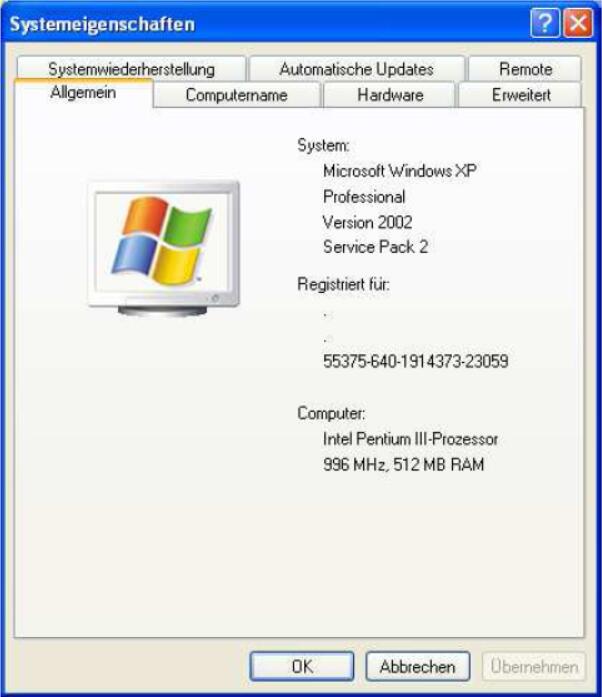
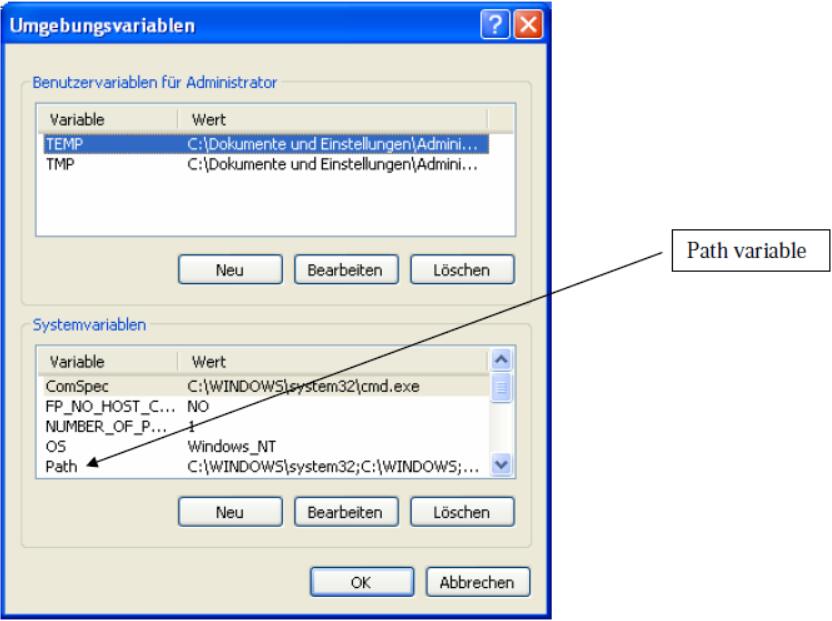
You will see this screen when you run it: 2. Choose “Advanced” and then “Environment Variables”
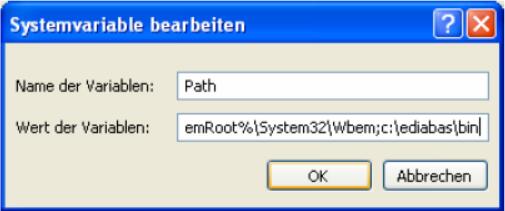
3. You’ll see a system variable called “Path” – double-click this
5. OK OK OK until the system window and control panel are gone Step 2 – Install the software
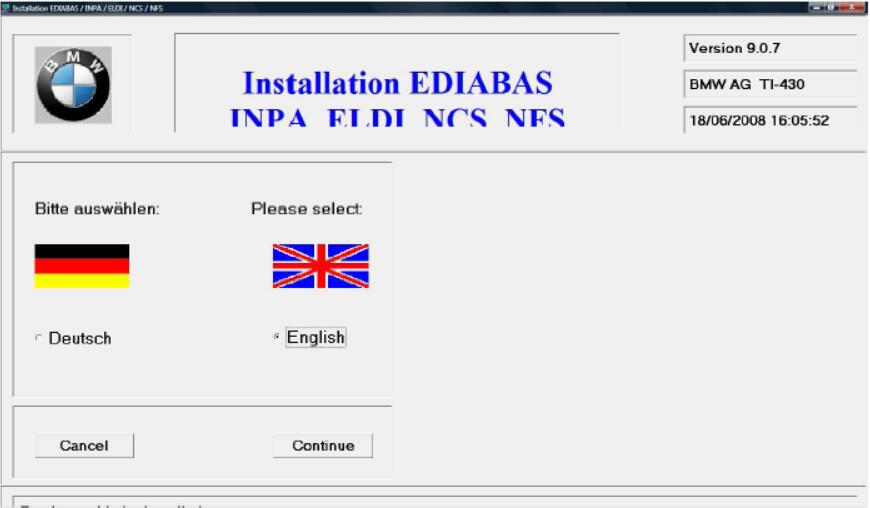
4. Choose English and click continue
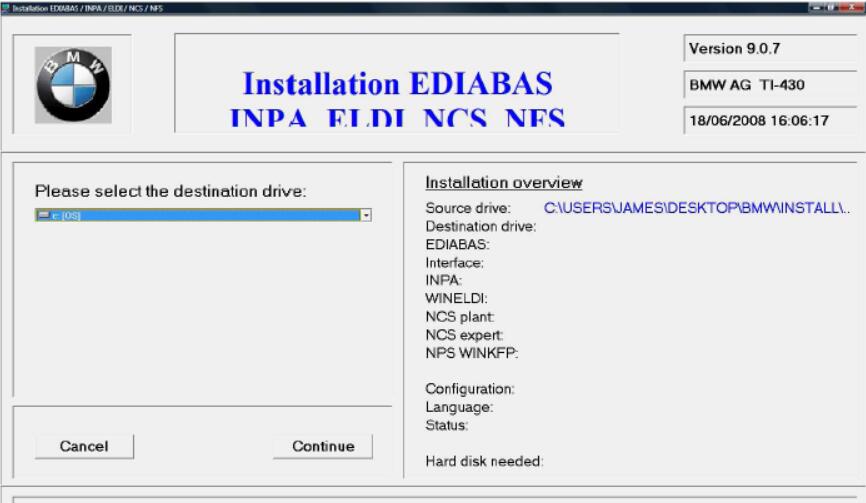
5. Select the drive to install to and click continue
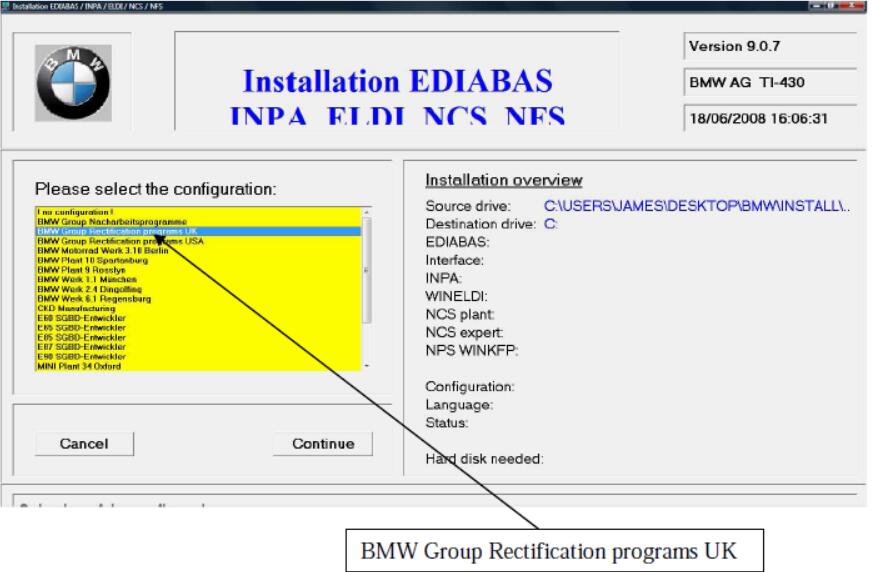
6. Select configuration “BMW Group Rectification programs UK” and click continue (this selection makes INPA run in English which is kind of useful!)
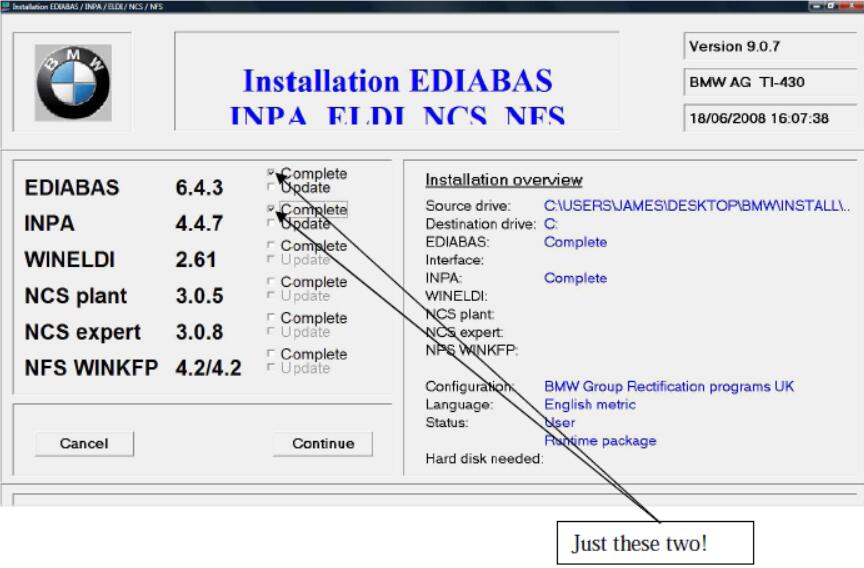
7. Select “complete” for EDIABAS and INPA and click continue (ignore WINELDI / NCS /NFS)
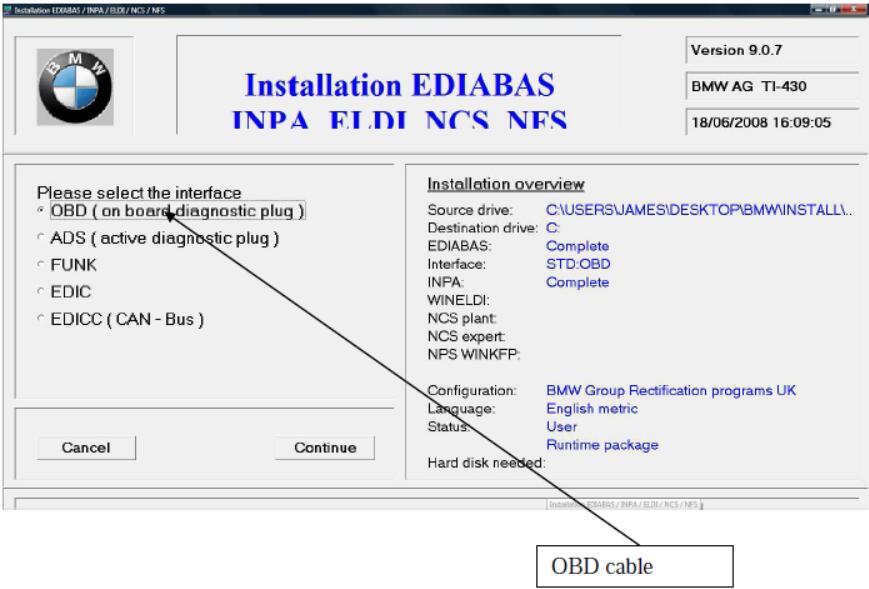
8. Select the interface cable type (the ones on eBay are “OBD” cables)
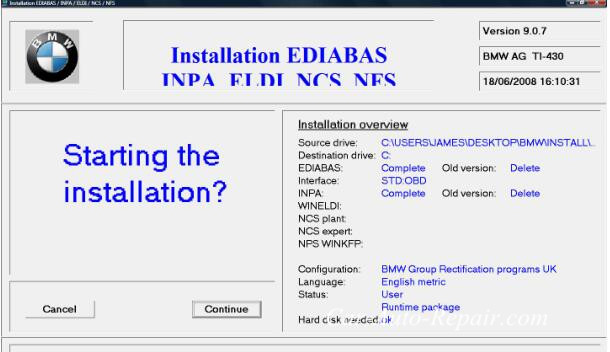
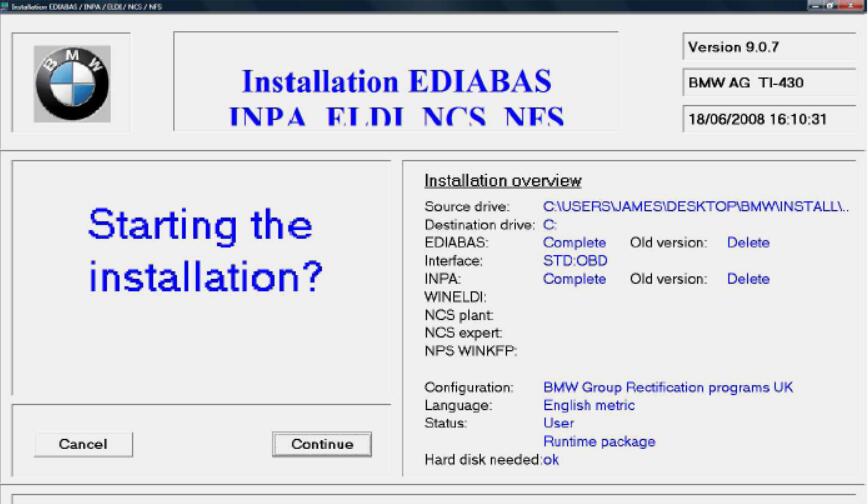
9. Confirm that you want to start the install (if you’ve previously tried and failed to install, it might ask you whether to delete or rename the existing install – choose Delete)
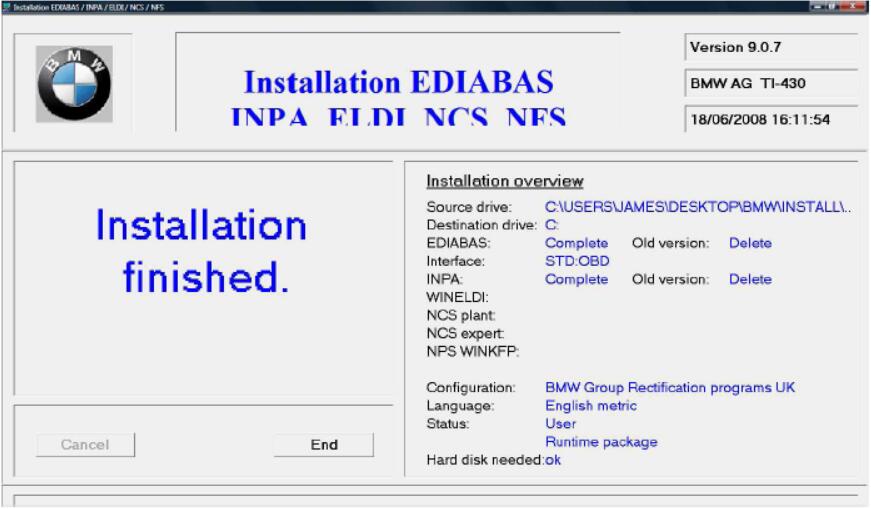
10. You should get an “installation finished” message
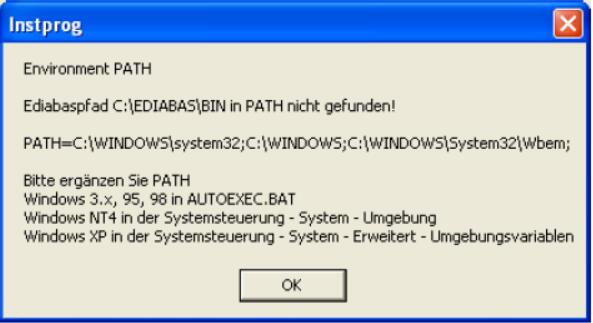
11. If you didn’t do the “path” setup I described in step 1, you will get another message. You HAVE to do Step 1 for it to work.
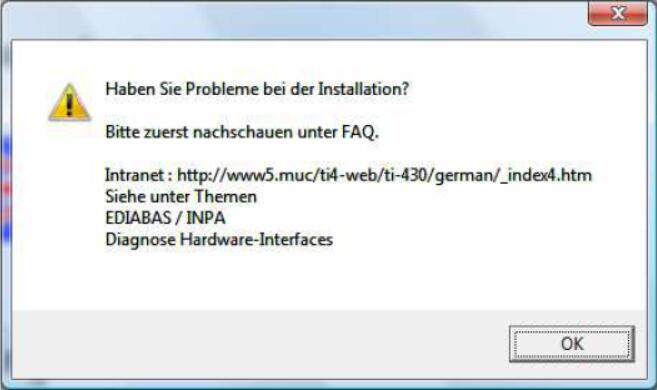
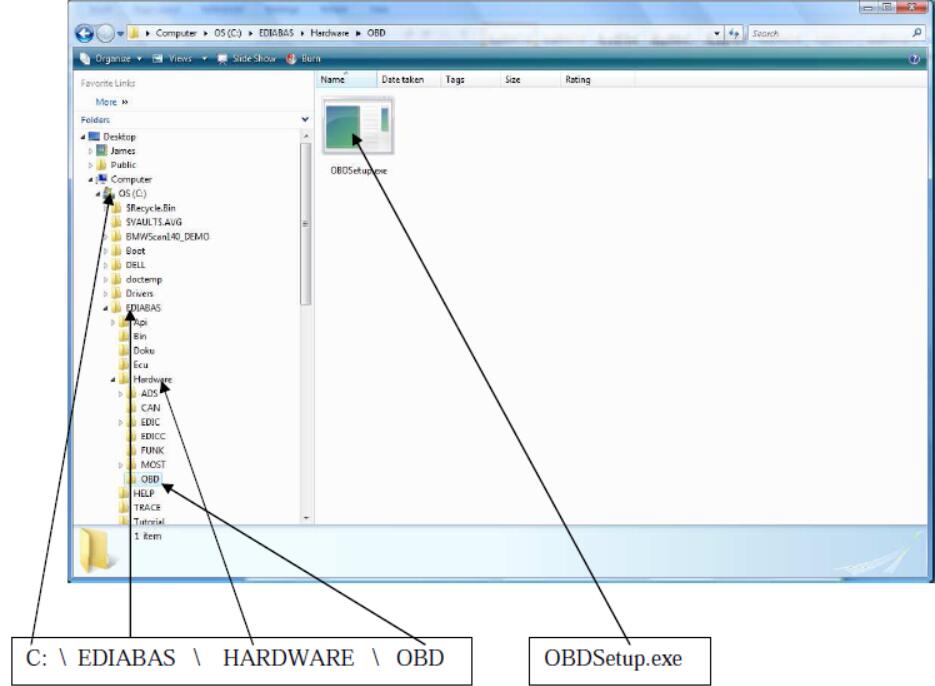
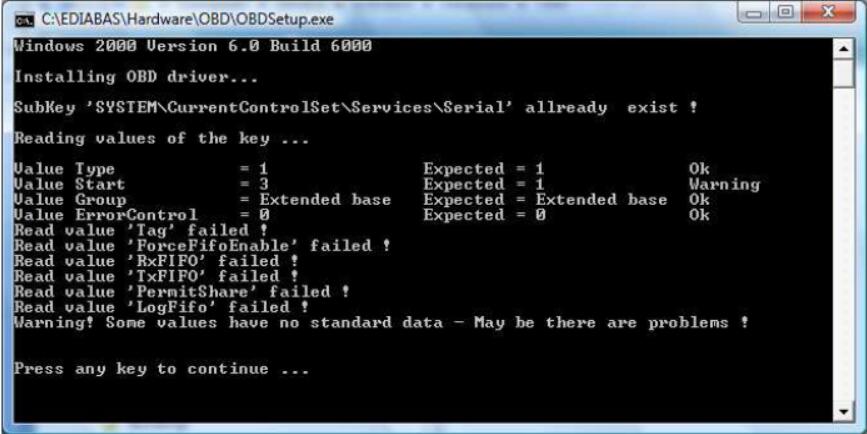
If you try to run it now, it still won’t work because of some duff registry settings. You need one final step to get it sorted! 12. Once the install is finished, there will be a folder on your laptop called c:\ediabas\hardware\obd and inside it will be a program called OBDSetup.exe – you need to run this. You can just search for OBDSetup.exe using Windows search.
You will see this screen when you run it:
BMW INPA Win7 Installation Guide: Method 1 BMW INPA work on Win7 32 bit This DIY was tested with Windows 7 Home Premium Service Pack 1 (SP1) running on a circa 2008 Lenovo S10 netbook with a K+DCAN cable from one stop electronics.com. My netbook is used solely for coding and as such this DIY assumes that your computer is dedicated to this purpose as well. I recommend starting with a fresh 32-bit Windows 7 installation in order to collect the necessary INPA 5.0.2 configuration files that you will need after installing BMW Standard Tools 2.12. I suggest disabling Windows Update automatic updates during the Windows 7 installation process. After entering your product key, the following screen will pop up security message. Select “Ask me later”, this will prevent Windows 7 from automatically installing any updates. If your installing from pre-SP1 Windows 7 media, I highly recommend that you manually install two Microsoft updates: System Update Readiness Tool (KB947821): Windows 7 Service Pack 1 (KB976932): During testing pre-SP1 Windows 7 no longer displayed a mouse pointer after successfully installing EDIABAS & WinKFP and rebooting the system. INPA 5.0.2 can be found here: INPA-EDIABAS full English Edition Installation Guide Follow steps 2 through 6 of the installation guide. During the EDIABAS & WinKFP install (step 3), select Windows XP (this is not mentioned in the installation guide.) For all other selections, accept the default and click Weiter which is German for “further.” The very first time you attempt to install EDIABAS & WinKFP (step 3), regsvr32 will fail to register two Windows ActiveX controls. This is normal, upon re-installation everything will work properly. Click on OK and then click on the large red circle with a white X at the bottom of the screen to see the second regsvr32 error. Click on OK to acknowledge the second error. Press any key to exit the EDIABAS OBD setup program. Don’t be concerned about any registry key warnings, this installation of EDIABAS will never be used. When prompted to reboot, select Nein for “No” and then click on Beenden or “End” to exit the installation program. Go to Control Panel and uninstall the program. Once you have uninstalled the program, reinstall it. On the second attempt, the ActiveX controls will register properly. This time, select Ja for “Yes” and reboot. Even with SP1 installed, on occasion the system will no longer display a mouse pointer after rebooting the system at this point. If this happens, depress the Windows logo key (on some keyboards it may have an icon of a house instead) to display the Start menu. Depress the right arrow key once and then depress Enter to initiate a proper shutdown. When powered back on, the system should have a functional mouse pointer. Continue with steps 4-6 in the installation guide. At the completion of step 5, the Windows Program Compatibility Assistant may appear. Click on “This program installed correctly.” At this point you could optionally install the latest EDIABAS/INPA update (ES-76) from FAL’s EA-90X distribution. I don’t recommend doing so as the latest INPA scripts are in German and not necessary for coding. Installation of the ES-76 update is outside of the scope of this DIY. You now have the base INPA scripts and configuration files that you’ll need to get the latest version of INPA (5.0.6) up and running. Copy the the INPA CFGDAT and SGDAT folders to removable media for safe keeping. They are located in C:\EC-APPS\INPA. If your curious, INPA 5.0.2 is operable at this point. If you were to install the K+DCAN drivers from Windows Update, set the cable to COM1, etc. the battery and ignition clamps are working properly. That’s cool, but INPA 5.0.2 and friends are not totally compatible with the latest SP Daten files (i.e. 50.2), so let’s move on to installing BMW Standard Tools 2.12. Links to BMW Standard Tools 2.12 and NCS Expert profiles can be found in this post: SP Daten 50.2 can be found in this thread: Blow away your previous installation of Windows and start over with a fresh install. INPA 5.0.2 and friends made changes to the Windows registry, etc. Now that we have the two folders needed to bootstrap INPA 5.0.6, it’s best to reinstall Windows. If your installing from pre-SP1 Windows 7 media, don’t forget to install the System Update Readiness Tool (KB947821) and Windows 7 Service Pack 1 (KB976932.) In addition, because this will hopefully be your final re-installation of Windows I suggest that you manually install one additional Microsoft update: Microsoft .NET Framework 4.5.1: When the K+DCAN cable is initially plugged in, Windows will indicate that the device driver was not successfully installed. Click on the white box circled above when it appears to change the driver update settings. Click on “Change setting.” Select “Always install the best driver software from Windows Update” then click on “Save Changes.” Windows Update will install the latest FTDI drivers needed for the one stop electronics.com K+DCAN cable. Notice that the FTDI driver has defaulted to USB Serial Port COM3. You need to change this to COM1. Click on “Close.” Click on the Windows Start button to display the Start menu. In the Start Search box type the following command and depress Enter to launch Device Manager: Code: mmc devmgmt.msc When Device Manager opens, click on the arrow to the left of “Ports (COM & LPT)” to expand the Ports device tree. Double-click on “USB Serial Port (COM3)” to open the device properties. Click on the “Port Settings” tab and then click on the “Advanced” button to display the Advanced Settings for COM3. Change the COM Port Number to COM1 and the Latency Timer to 1 msec and click “OK.” The USB Serial Port should be set to COM1. Close Device Manager. Install BMW Standard Tools 2.12. Accept the defaults and click “Next.” When prompted to select additional tasks, de-select the “Execute backup and restore wizard” selections under Data backup. You don’t have an existing installation of BMW Standard Tools to backup. Click “Next.” Click “OK” to acknowledge that the backup wizard has been deactivated. When the Hardware Interface Settings screen appears, select “USB to serial adapter” then click “Next.” Click “Finish” to complete the BMW Standard Tools setup and restart your computer. Please note: This section of the DIY could be improved for neophyte Windows users. It assumes that you understand command line syntax. In this context, X: denotes an unknown drive letter (i.e. the USB thumb drive that you saved your INPA CFGDAT and SGDAT folders to.) For example, if in Windows Explorer under Computer your USB thumb drive is denoted as Drive E:, then you should use E: instead. Code: C:\Users\808>copy E:\CFGDAT\*.ENG C:\EC-APPS\INPA\CFGDAT /v14 file(s) copied. If you chose to store the CFGDAT folder in another folder named MyStuff, then you would have to include MyStuff in the source path. Code: C:\Users\808>copy E:\MYSTUFF\CFGDAT\*.ENG C:\EC-APPS\INPA\CFGDAT /v14 file(s) copied. The drive letter and path to the source file(s) is dependent on where you stored the files. Click on the Windows Start button to display the Start menu. In the Start Search box type the following command. Right click on the Windows Command Processor (cmd) under Programs and select Run as administrator. Code: cmd When the User Account Control dialog box appears, select Yes to allow the Windows Command Processor to make changes to your computer. Copy the Windows ActiveX control MSFLXGRD.OCX to C:\WINDOWS\SYSTEM32 and manually register it. Copy the Windows ActiveX control RICHTX32.OCX to C:\WINDOWS\SYSTEM32 and manually register it. Overwrite the INPA initialization file in the C:\EC-APPS\INPA\CFGDAT folder with the INPA.INI from your saved CFGDAT folder. Code: C:\>copy X:\CFGDAT\INPA.INI C:\EC-APPS\INPA\CFGDAT /v /y1 file(s) copied. Copy the INPA scripts and configuration files from your saved CFGDAT and SGDAT folders. Code: C:\>copy X:\CFGDAT\*.ENG C:\EC-APPS\INPA\CFGDAT /v14 file(s) copied.C:\>copy X:\SGDAT\*.IPO C:\EC-APPS\INPA\SGDAT /v468 file(s) copied.C:\>copy X:\SGDAT\*.SRC C:\EC-APPS\INPA\SGDAT /v11 file(s) copied.C:\>copy X:\SGDAT\*.TXT C:\EC-APPS\INPA\SGDAT /v2 file(s) copied. Copy the group files from the SP Daten E89 folder to C:\EDIABAS\ECU. Code: C:\>copy X:\E89\ECU\*.GRP C:\EDIABAS\ECU /v80 file(s) copied. Import your daten files into WinKFP using this guide (steps 2-8): Create a C:\NCSEXPER\DATEN\E89 folder and copy the contents of the E89\DATEN folder into it. Code: C:\>mkdir C:\NCSEXPER\DATEN\E89C:\>copy X:\E89\DATEN\*.* C:\NCSEXPER\DATEN\E89 /v430 file(s) copied. Copy the contents of the E89\SGDAT folder to C:\NCSEXPER\SGDAT. Code: C:\>copy X:\E89\SGDAT\*.* C:\NCSEXPER\SGDAT /v224 file(s) copied. Go to the E89\DATEN directory and execute the LADEN.BAT script. Code: C:\>cd X:\E89\DATENX:\E89\DATEN>laden.bat You’ll receive errors at the end of the script due to the missing C:\EC-APPS\CARSERVER directory, ignore them. Install the patched 32-bit NCS Expert from this thread: Example: Code: rename C:\NCSEXPER\BIN\NCSEXPER.EXE NCSEXPER.OLDrename C:\NCSEXPER\CFGDAT\NCSEXPER.TXT NCSEXPER.GERcopy NCSEXPER.EXE C:\NCSEXPER\BIN /vcopy NCSEXPER.TXT C:\NCSEXPER\CFGDAT /v Copy the NCS Expert profiles to the C:\NCSEXPER\PFL folder. Example: Code: copy *.PFL C:\NCSEXPER\PFL /v Your done, enjoy!
Method 2 work on Win7 64 bit I have been trying to find clear instructions on how to achieve this installation successfully over the past few months, I kept giving up due to confusion, frustration, misleading threads and bad information. However, after much research, I have finally got it working and hope to help others searching for solutions. I can’t guarantee that this is absolutely perfectly described but the process below worked in my case, hopefully it’ll get you up and running too. My specific use is to diagnose codes on my E46 M3 (2004) and so I can confirm that it works fully with this car. If someone wishes to take screenshots, I’ll add them to the guide. Assumptions and Clarifications This setup/installation DOES work on Windows 7 64bit.
1. Buy a cable I purchased a USB cable from EBay, it came with software but I didn’t use it and instead used online resources that I downloaded for which I’ll provide links. The cable I purchased is a USB to OBD2 connector that plugs into your BMW to the right hand side of the steering wheel, in the foot-well area. This is the specific cable that I purchased and that I can confirm works:
2. Download the software There are many sources on the internet for INPA/EDIABAS, some seem to work, others do not – I used these specific downloads and they worked perfectly: ** UNFORTUNATELY THE DOWNLOAD LINKS ARE NO LONGER AVAILABLE – BUT I WILL SEE WHAT I CAN DO ** If for any reason the above links are missing/broken, PM me and I’ll see what I can do. Thank you to whomever is hosting the above files and I hope that you do not mind me providing these links. 3. Setup/Configure your OBD2 USB Cable Put the DVD that arrived with the cable into the DVD drive on your PC.
4. Install INPA/EDIABAS 6.4.3 and 4.4.7 Extract the contents of the downloaded file ‘INPA-6.4.3-full.rar’ and you’ll find a .NRG file. This is a CD image that you’ll need to either burn to a CD or extract to a folder using a tool such as ISOBuster.
5. Verify environment variables Go into Control Panel -> System -> Advanced System Settings.
6. Prepare Installation Files Extract the contents of the downloaded file ‘INPA_502_Updated.rar’.
7. Install BMW Tools From the above extracted file set, find the file ‘Step 1_ Install BMW Tools.exe’, right-click on it and select ‘Properties’.
8. Install INPA/EDIABAS 6.4.7 and 5.0.2 From the above extracted file set, double-click the file ‘Step 2_ Install INPA.exe’.
9. Install OBD Setup From the above extracted file set, double-click the file ‘Step 3_Final Update.exe’.
10. Complete Installation From the above extracted file set, double-click the file ‘serial port.reg’.
In theory, you’ll now have an INPA icon on your desktop and Start Menu – right-click on it, select ‘Troubleshoot Compatibility’, it’ll select ‘Windows XP SP3’, click ‘Next’ and ‘Save’. This step isn’t necessarily required, however it apparently provides a little more stability for the application. Now, with your interface connected via the USB port (remember NOT to plug the cable into any port other than the port that you originally configured the cable with) – and the other end connected to your car, fire up INPA and hopefully you’ll have a working diagnosis tool Apologies for any inaccuracies, please do PM me and I’ll make corrections, but to my knowledge the above is the exact process that I used to get mine up and running. Finally, I’d like to thank FAL for his help/assistance with getting my setup fully working Procedures of BMW INPA Install on WIN10: Method 1: INPA/EDIABAS Windows 10 64-bit Installation Guide share by perishalive92 from bimmerforums.com NOTE: I am NOT responsible for any damage YOU do to your car or computer. INPA will work with few select things for an E38 such as restting adaptations, diagnostics, code reading, etc. NCS Expert will NOT run on a 64-bit operating syetm. If you have a 32-bit version of Windows 10, please feel free to try ECS Expert and let me know if it works! I have NOT tried INPA with any other bmw models. Please feel free to comment your success on other models!! Should you get ANY errors or pop-ups during any phase of the installation, ignore them. INPA will still install.
Pre-Installation
Installation – Phase 1
Phase 2
Phase 3
Phase 4
Phase 5
Phase 6 Phase 7
Phase 8
Phase 9
In theory, you will not have INPA on your desktop. Right-click it and set up compatibility mode as mentioned in Phase 1, step 3. Double click to launch. Method 2: Install the drivers for INPA K+D-CAN cable (version with FTDI FT232RL chip only). Disconnect from the Internet because it is possible that the drivers are installed from Windows Update (if you want to use the latest home FTDICHIP then disconnect or reinstall) why run the executable CDM 21216_setup.exe; It is compatible with 64-bit versions of Windows 7, If necessary, you can download the latest version according to the OS on the siteFTDICHIP http://www.ftdichip.com/Drivers/VCP.htm
This is an interface / cable VCP (Virtual COM Port) so there are two features and therefore an installation in 2 phases if done manually 1 – Cable driver 2 – VCP driver if using the automatic executable (.exe) offered on the site, then the 2 self install a result it’s easier and without going through the Device Manager => then plug the INPA cable into a USB port NOTE WELL PORT IDENTIFY THIS CAR ALONE WILL WORK AFTER SETTING IT WILL THEREFORE ALWAYS CONNECT THE CABLE ON THE PORT in Device Manager there will be a new entry: “COM and LPT ports” / sérial USB Port (COM3) eg for now Then you must configure the port that will emulate the virtual COM port 9 (eg. Default for Ediabas 7.3 patched) but it’s tune to your install Open Device Manager, choose COM Ports / USB serial port / port settings / advanced / set “COM 9” and the latency to “1” finally install BMW Standard Tools, all versions are not compatible with win 7 and 64-bit architectures, so use the BMW STD Tools version 2.12, which includes a recent version INPA 5.0.6 and 7.3.0 Ediabas.
|
|
| ( 興趣嗜好|電腦3C ) |